Recover Deleted Files from Trash Bin: What Still Works After Deletion (And What Doesn’t)
Recover deleted files from trash bin is sometimes possible—but only under specific conditions.
Once files are removed from the Trash or Recycle Bin, the operating system no longer treats them as active data, yet they may still physically exist on the storage device.
Whether recovery works now depends less on the tool you use and more on how the files were deleted, what storage type you’re using, and what happened afterward.
This guide explains what really happens after emptying the Trash, when recovery is still realistic, and how to avoid actions that permanently destroy recoverable data.
Part 1. What Actually Happens When Files Are Deleted from the Trash or Recycle Bin
Deleting a file from the Trash or Recycle Bin feels final—but technically, it usually isn’t immediate erasure.
What the system does instead
When you empty the Trash or Recycle Bin:
- The file’s reference in the file system is removed
- The storage space is marked as available for reuse
- The underlying data may still exist until overwritten
Why this matters
As long as the data blocks haven’t been reused, recovery software may still be able to:
- Detect file signatures
- Reconstruct directory entries
- Extract intact file data
However, this window is fragile.
Key factors that determine recoverability
| Factor | Why it matters |
|---|---|
| Storage type (HDD vs SSD) | SSDs handle deletion very differently |
| Time since deletion | More time = more overwrite risk |
| System activity after deletion | Background writes matter |
| TRIM support | TRIM can make data unrecoverable |
Deleting files is not what usually destroys data. What happens after deletion does.
Part 2. Can You Recover Files After Emptying the Trash or Recycle Bin?
This is the most common question—and the most misunderstood one.
Recovery is sometimes possible if:
-
The files were stored on:
-
HDD
-
External hard drive
-
USB flash drive
-
SD card
-
The system has not written大量新数据 since deletion
-
The deletion happened recently
-
The files were not extremely small metadata-only files
Recovery is often unlikely if:
-
The files were deleted from:
-
A system SSD
-
The computer continued running normally for days or weeks
-
The OS supports and executed TRIM
-
The deletion happened months ago
Reality check from Reddit and recovery forums
Users frequently report:
- Successful recovery from HDDs even days later
- Near-zero success on actively used SSD system drives
- Partial recovery when only some blocks were overwritten
Recovery after emptying the Trash is not about luck.
It’s about storage behavior and timing.
Part 3. Common Scenarios That Cause Confusion (And False Hope)
Many users fail at recovery because they misunderstand what was deleted and how.
Scenario 1: “It was in the Recycle Bin, so it must be safe”
- The Recycle Bin is not a backup
- It’s only a temporary holding layer
- Emptying it removes the last file-system reference
Scenario 2: “I deleted it months ago, but it might still be there”
- On HDDs: maybe, but unlikely
- On SSDs: almost always no
- Continued usage dramatically reduces chances
Scenario 3: “I’ll just try every recovery tool”
- Multiple scans increase disk reads
- Some tools perform aggressive operations
- This can reduce later recovery success
Scenario 4: “I should fix the disk first”
-
Running repair or cleanup utilities can:
-
Rewrite metadata
-
Zero free sectors
-
Destroy recoverable traces
Understanding what not to do is often more important than choosing a tool.
Part 4. Built-in Recovery Options to Try First (Low Risk)
Before using any recovery software, it’s worth checking low-risk, built-in options.
These only work in specific situations, but they don’t increase overwrite risk.
-
Restore directly from the Recycle Bin / Trash
-
Open Trash or Recycle Bin
-
Right-click the file
-
Choose Restore / Put Back
✔ Works only if the bin was not emptied.
-
Undo deletion (immediate only)
-
Press Ctrl + Z (Windows)
-
Or Command + Z (macOS)
✔ Only works immediately after deletion.
-
Previous Versions / File History (Windows)
-
Right-click the original folder
-
Choose Restore previous versions
-
Requires File History or backups enabled beforehand
✔ Works only if backups existed.
-
Cloud Trash (OneDrive / Google Drive)
-
Check cloud recycle bins
-
Cloud services often retain deleted files for 30+ days
✔ Works if files were synced.
If none of these apply, software-based recovery may be the only remaining DIY option.
Part 5. Why SSD Makes Trash Recovery Much Harder (TRIM Explained Simply)
One of the most important—and misunderstood—factors is TRIM.
What TRIM does
TRIM is a command sent by the operating system to SSDs that:
- Marks deleted blocks as unused
- Allows the SSD to clean them proactively
- Improves performance and lifespan
Why this breaks recovery
Once TRIM + garbage collection complete:
- Deleted blocks are zero-filled
- No recoverable data remains
- Even professional tools cannot reconstruct files
HDD vs SSD behavior
| Aspect | HDD | SSD |
|---|---|---|
| Deleted data remains | Often | Briefly or not at all |
| Overwrite speed | Slower | Much faster |
| TRIM support | ❌ | ✅ |
| Recovery window | Larger | Very small |
This is why Reddit answers often say:
“If it was on a system SSD, chances are basically zero.”
That’s not pessimism—it’s physics and firmware behavior.
Part 6. What NOT to Do After Emptying the Trash (Critical)
If your goal is recovery, these actions actively reduce your chances:
- ❌ Continuing to use the affected disk normally
- ❌ Installing recovery software on the same disk
- ❌ Running CHKDSK or disk repair tools
- ❌ Cleaning temporary files
- ❌ Repeatedly scanning with multiple tools
- ❌ Saving recovered files back to the same drive
Every write operation increases overwrite risk.
If recovery still matters, stop using the disk as soon as possible.
Part 7. A Safer Way to Recover Deleted Files From the Trash
If files have already been removed from the Trash or Recycle Bin, recovery should focus on preserving whatever data still remains on the original drive .
At this stage, the goal is not to repair the disk, but to locate recoverable file data before normal system activity overwrites it.
Ritridata fits this type of scenario because it supports read-only recovery workflows for internal drives, external hard drives, USB devices, and SD cards on both Windows and macOS.
Step 1: Select the Original Location
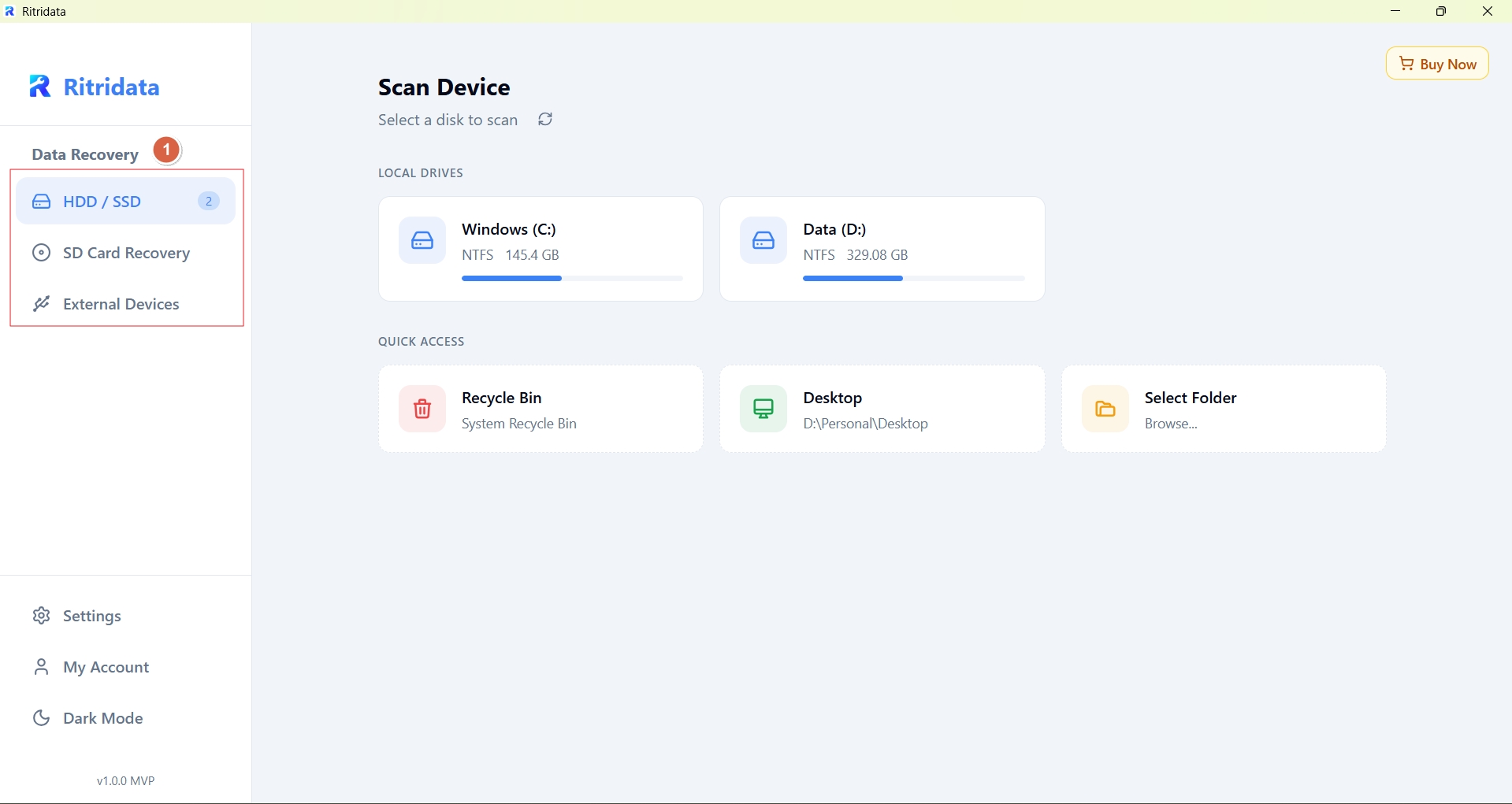
Choose the exact drive where the files were stored before they were deleted from the Trash or Recycle Bin.
This may include:
- The internal system drive
- An external hard drive
- A USB flash drive
- An SD card
Be precise. Scanning unrelated disks wastes time and may increase unnecessary disk activity.
If the deleted files were originally on removable storage, connect the device but do not write new data to it.
Step 2: Run a Safe Scan
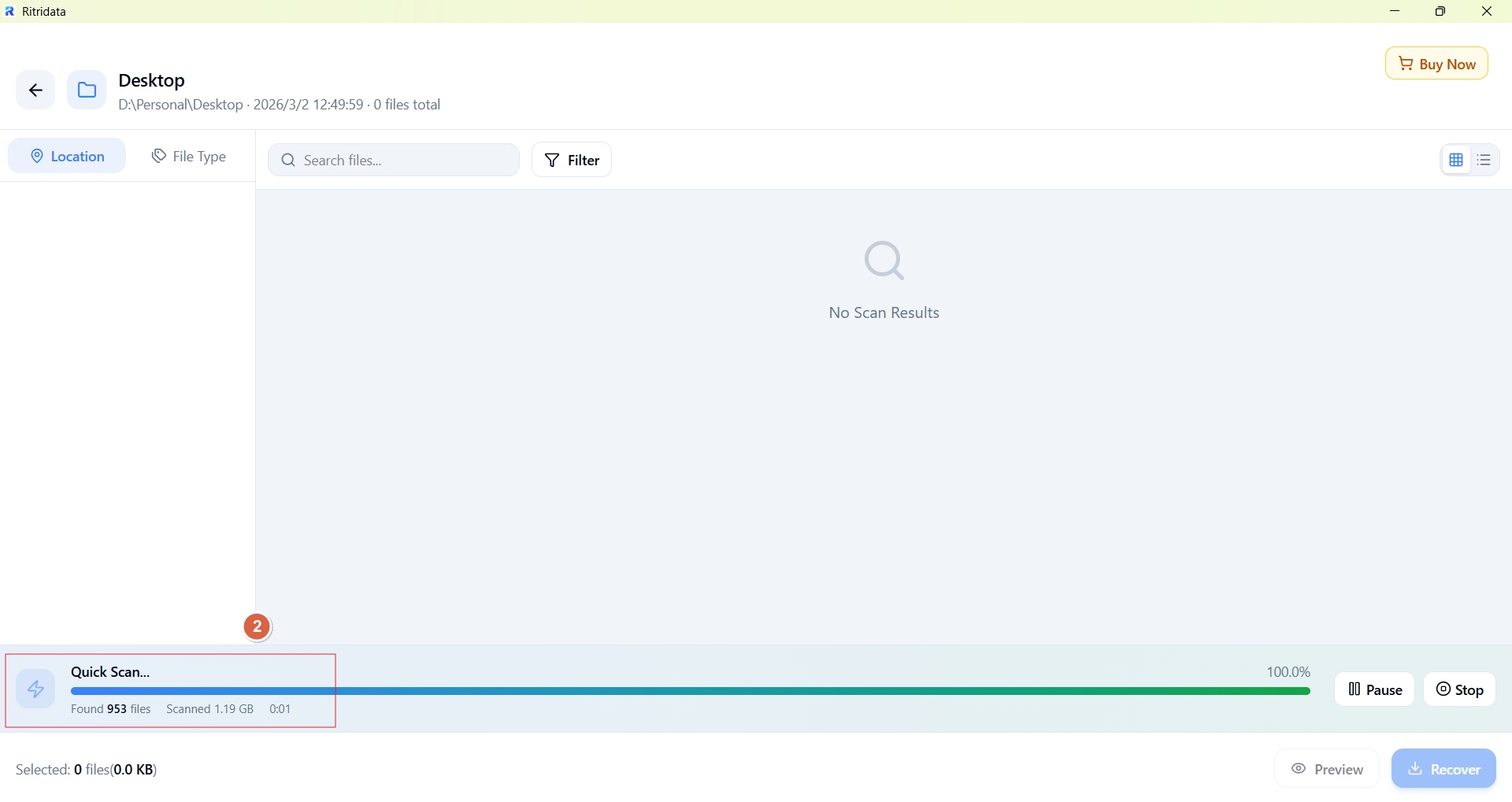
Use a read-only scan that checks deleted file records and remaining disk data without writing anything back to the source drive.
This is especially important after:
- Emptying the Recycle Bin
- Emptying the Trash
- Permanent deletion from external storage
- Recent file removal followed by minimal device usage
Ritridata performs read-only analysis during scanning, which helps preserve recoverable data traces that may still exist after Trash deletion.
⚠️ Do not install recovery software on the same drive where the files were deleted if another installation location is available.
Step 3: Preview and Recover
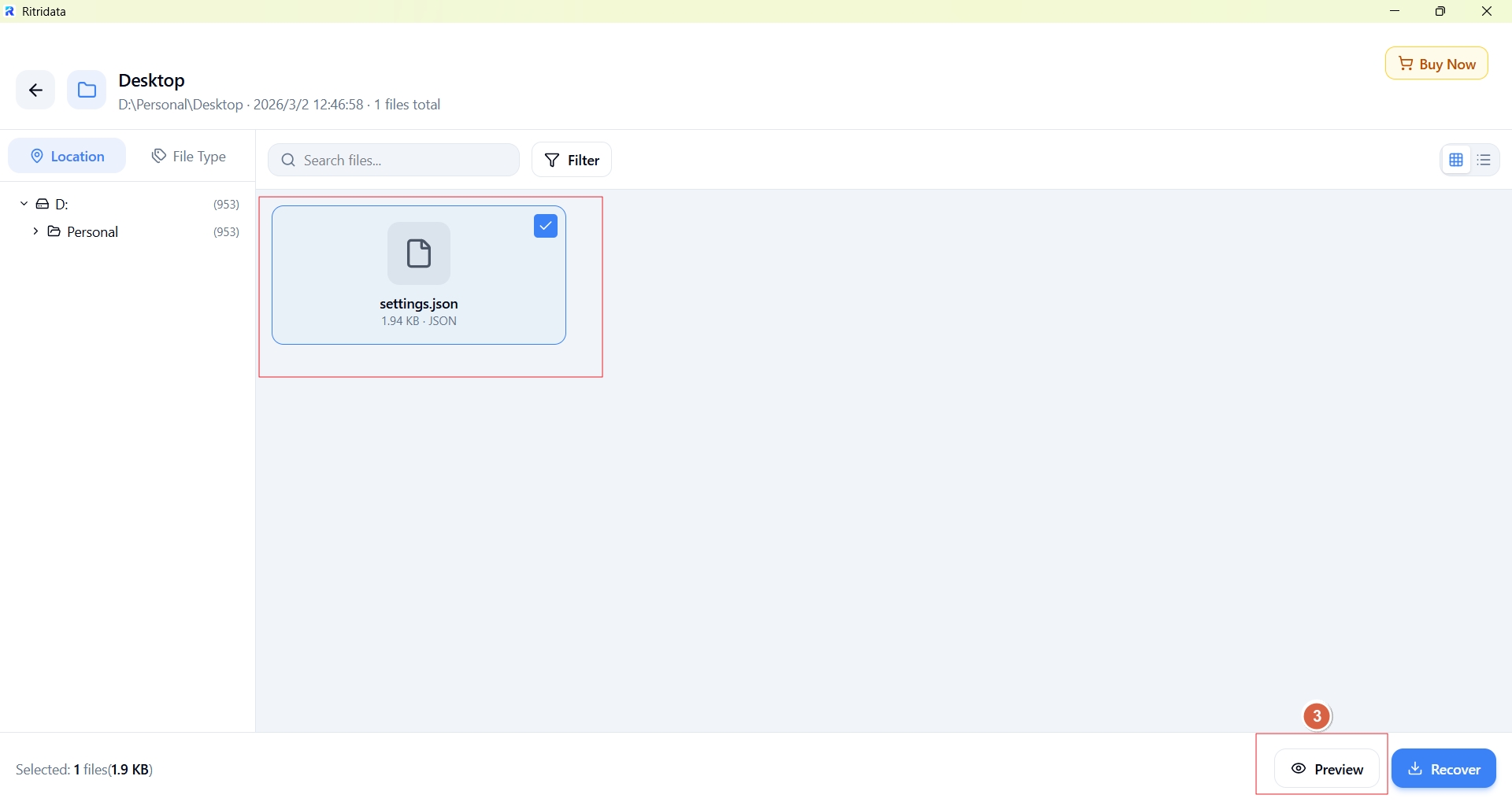
Before restoring anything, preview the recoverable files.
Check:
- File names
- File type and size
- Whether the content opens correctly
- Whether the recovered version is still usable
Then recover the files to a different location, such as:
- Another partition
- An external drive
- A separate storage device
Never restore files to the same drive they were deleted from, as this may overwrite other recoverable data.
Part 8. When Software Recovery Is Unlikely to Work
There are situations where continuing DIY recovery attempts is unrealistic.
Recovery is usually ineffective if:
- Files were deleted from a system SSD
- The system was used heavily afterward
- Deletion occurred months ago
- No recoverable files appear in preview
At this stage:
- Further scanning won’t help
- Continued attempts may reduce professional recovery options
- Accepting data loss may be the safest outcome
Understanding limits prevents false hope and wasted effort.
FAQ – Recover Deleted Files from Trash Bin
Can I recover files after emptying the Recycle Bin?
Sometimes. Recovery depends on storage type, time since deletion, and overwrite activity.
Are deleted files really gone forever?
Not immediately. They become unavailable but may still exist until overwritten.
Why is SSD recovery harder than HDD?
SSDs use TRIM, which actively clears deleted data blocks.
How long do deleted files stay recoverable?
It varies. On HDDs, it can be days or weeks. On SSDs, sometimes only minutes or hours.
Can I recover deleted files for free?
Free tools may help preview or recover small amounts, but results vary.
Does Windows permanently delete files?
Windows marks files as deleted, but permanent removal depends on storage behavior.
Is it safe to use recovery software?
Yes—if it uses read-only scanning and recovers files to a different drive.
References
Microsoft Learn – Windows File Recovery
- https://learn.microsoft.com/windows/client-management/windows-file-recovery
- Microsoft – Recycle Bin behavior documentation
- Reddit – r/datarecovery user discussions
- Technical explanations of SSD TRIM and garbage collection