How to Fix SD Card Error Without Losing Your Data
How to fix SD card error depends on what actually went wrong with the card.
Some SD card errors are caused by minor file system corruption and can be fixed safely, while others involve deeper logical or physical issues where “repairing” the card too early can permanently destroy recoverable data.
This guide explains why SD card errors happen, how to tell whether your data is still recoverable, what mistakes to avoid, and how to recover files safely before attempting any repair.
Part 1. What Does an SD Card Error Really Mean?
When an SD card shows an error, it doesn’t automatically mean the card is dead. In most cases, the error is the operating system’s way of saying it can’t correctly interpret the card’s file system.
Common SD card error messages include:
- “You need to format the disk before you can use it”
- “SD card is not accessible”
- “The file system is RAW”
- “SD card error” or “Cannot read SD card”
- SD card shows 0 bytes or unknown capacity
Behind these messages, several different things may be happening.
Logical vs physical problems
Logical problems (often recoverable):
- File system corruption (FAT32 / exFAT)
- Improper ejection
- Power interruption during write
- Sudden device crash
- Directory or allocation table damage
Physical problems (limited or no DIY recovery):
- Controller failure
- NAND memory degradation
- Cracked PCB or broken contacts
- Overheating damage
- Severe bad sector spread
Most SD card errors that appear suddenly—especially after file transfers, renaming, or unsafe removal—are logical, not physical. However, the actions taken immediately after the error appear strongly influence whether recovery remains possible.
Part 2. Can a Corrupted SD Card Be Fixed Without Losing Data?
The short answer is: often yes, but only under specific conditions.
SD card errors that can usually be fixed safely
- The card is detected by the system
- Capacity shows correctly
- The card does not disconnect randomly
- No visible physical damage
- The system assigns a drive letter
In these cases, corruption is often limited to file system metadata rather than the underlying data blocks.
High-risk scenarios where fixing first is dangerous
- SD card shows as RAW
- Capacity displays as 0 bytes
- System repeatedly asks to format
- Card disappears and reconnects
- Previous repair attempts failed
In high-risk scenarios, “fixing” the card first can overwrite metadata that data recovery software relies on. This is why many professional recovery discussions emphasize that repair is not the first step—recovery is.
Part 3. Common Mistakes That Make SD Card Errors Worse
Across technical forums and Reddit communities, the same mistakes appear repeatedly. These mistakes don’t just fail to fix the problem—they actively reduce recovery chances.
Mistake 1: Formatting the SD card immediately
Formatting rewrites file system structures. Even quick formats can destroy directory information needed for organized recovery.
Mistake 2: Running CHKDSK on a RAW SD card
CHKDSK is designed to repair file systems, not recover data. On RAW cards, it may attempt to rebuild structures incorrectly, causing file fragmentation or loss.
Mistake 3: Writing recovered files back to the same card
This overwrites data blocks that may still contain unrecovered files.
Mistake 4: Using multiple repair tools sequentially
Each tool modifies metadata differently. Repeated scans and repairs increase data inconsistency.
Mistake 5: Treating SD cards like hard drives
SD cards have limited write cycles and simpler controllers. Aggressive operations degrade them faster.
The recurring advice from experienced users is simple: stop using the card and avoid repair until data is secured.
Part 4. Real-World SD Card Error Scenarios (From Users)
Many SD card error cases follow similar patterns.
A common scenario:
- User records media (photos, audio, video)
- Deletes or renames files via a computer
- System freezes during an operation
- Error message appears asking to format
- Card becomes unreadable
In several documented cases, users successfully restored access by running file system checks—but only after confirming the data was intact or already backed up. Others lost everything because they formatted or repaired blindly.
The key takeaway from these stories is not that CHKDSK or repair tools are useless—but that timing and order matter more than the tool itself.
Part 5. How to Fix SD Card Errors (From Lowest to Highest Risk)
Not all fixes carry the same risk. The safest approach is to move step by step, escalating only when necessary.
Level 1: Non-destructive checks
These steps do not modify data:
- Try a different card reader
- Switch USB ports
- Use another computer
- Check the physical lock switch
- Clean contacts gently
Level 2: Low-risk software checks
Only attempt these if the card is recognized normally:
- Windows Error Checking
- CHKDSK only when a valid file system is detected
- Driver reinstall
Level 3: High-risk actions
These should only happen after data recovery:
- Formatting
- Partition recreation
- TestDisk write operations
Repair should always be the final step—not the first reaction.
Part 6. How to Recover Files From an SD Card Error Safely
If your SD card shows RAW , asks to be formatted, or suddenly becomes unreadable, recovery should come before repair.
At this stage, the goal is not to “fix” the card immediately, but to extract recoverable data without changing the card’s current state .
Ritridata fits this type of scenario because it supports SD and microSD card recovery with a read-only workflow designed to reduce overwrite risk during scanning.
Step 1: Select the SD Card as the Original Source
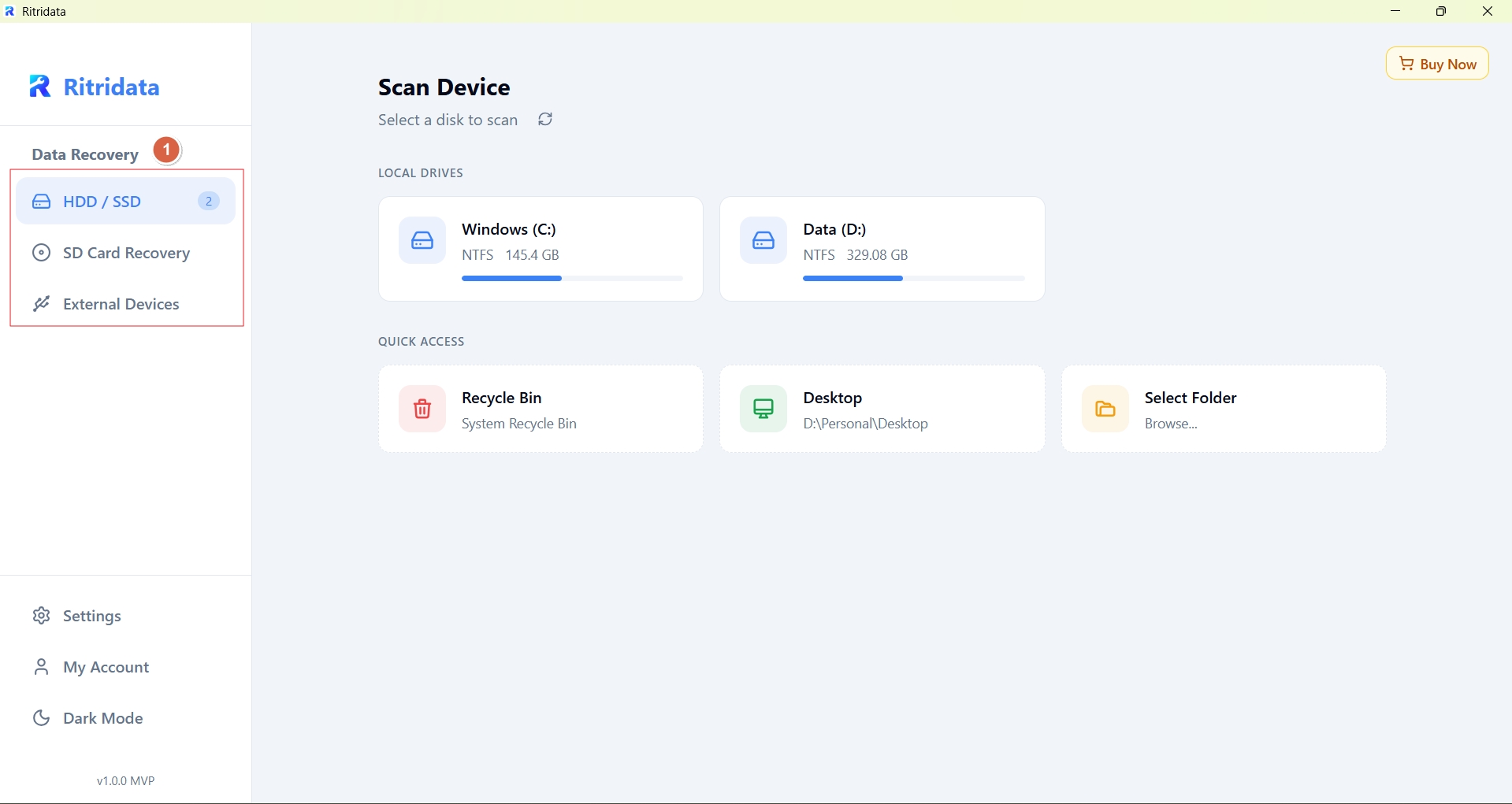
Choose the SD card itself as the scan target.
Do not:
- Format the card
- Initialize it
- Run repair commands
- Select another disk by mistake
If the card appears with the correct capacity, select it directly. If a partition looks broken or missing, focus on the physical SD card rather than trying to repair the partition first.
Step 2: Run a Safe Scan
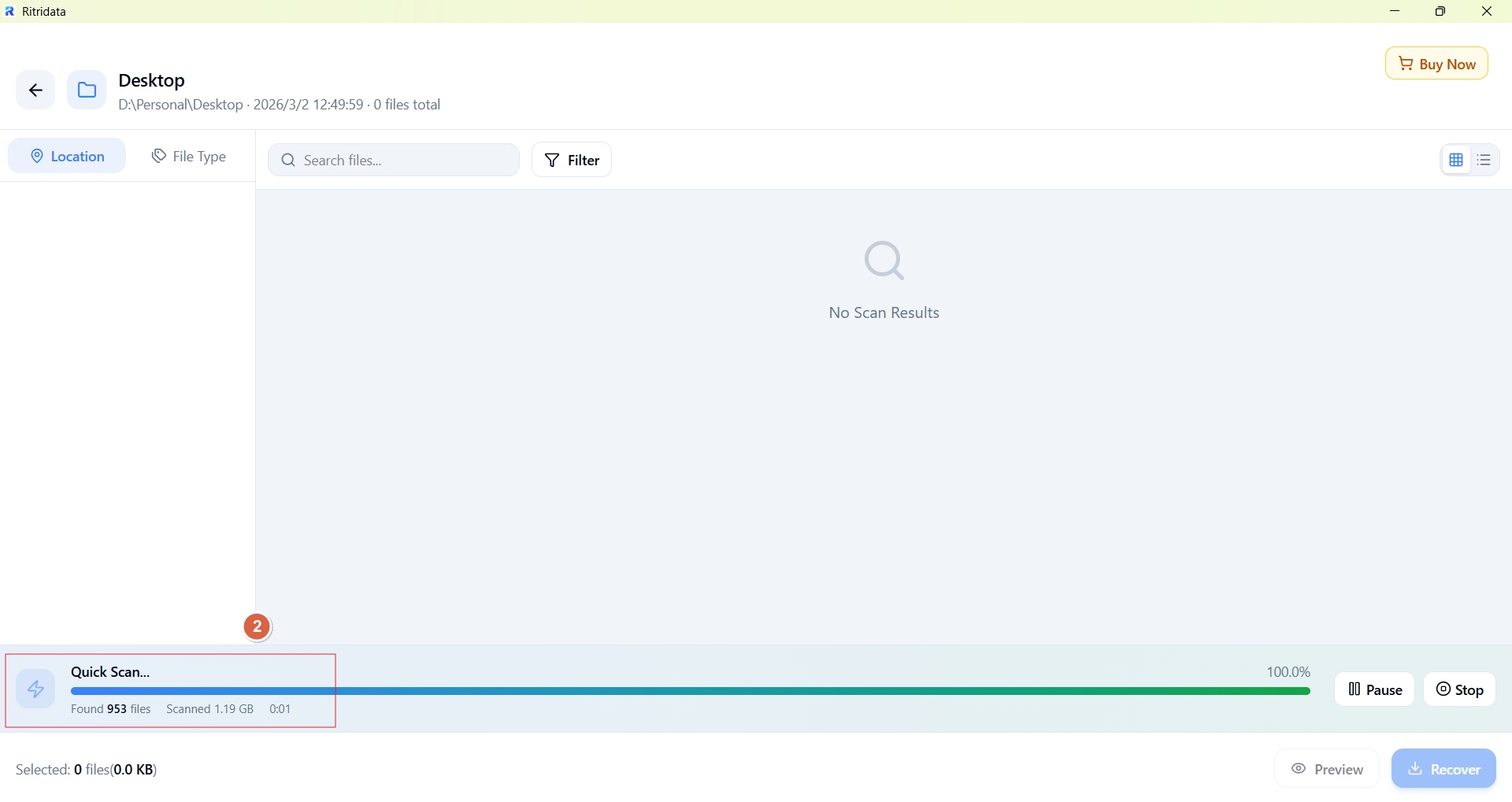
Use a read-only scan that analyzes the card without writing anything back to it.
This is especially important when the SD card:
- Shows as RAW
- Triggers a format prompt
- Contains missing or inaccessible files
- Was removed unsafely or interrupted during transfer
Ritridata scans the SD card in read-only mode during analysis, which helps preserve existing file system remnants and recoverable file data.
⚠️ Do not run CHKDSK, formatting, or partition repair before recovery if the files still matter.
Step 3: Preview and Recover to Another Device
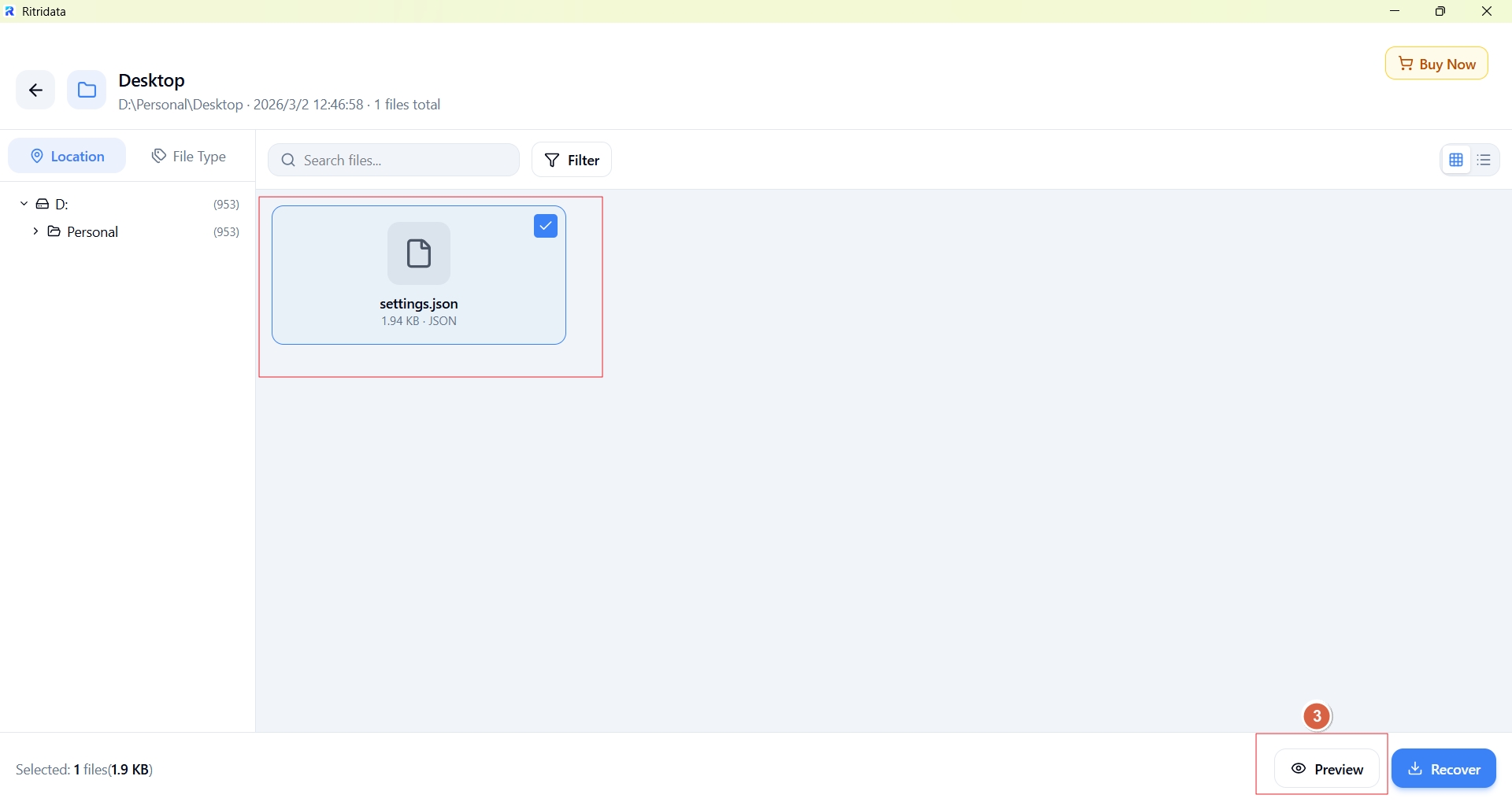
Preview files before restoring them.
Check whether:
- Photos open correctly
- Videos are playable
- File names or folder structure are still recognizable
- The recovered content is complete enough to keep
Then recover the files to a different location, such as:
- Your computer’s internal drive
- An external hard drive
- Another storage device
Never save recovered files back to the same SD card.
Part 7. When You Should Stop DIY and Seek Professional Help
DIY recovery has limits. Stop immediately if you observe:
- SD card not detected on any device
- Incorrect or fluctuating capacity
- Frequent disconnections
- Signs of controller failure
- Visible physical damage
Continuing software-based attempts in these cases can make professional recovery more difficult or impossible.
FAQ – SD Card Error & Recovery
Can a corrupted SD card be fixed?
Often yes, depending on the cause and whether data has been overwritten.
How do I fix an SD card error without formatting?
Start with non-destructive checks and recover data first before attempting repair.
Is CHKDSK safe for SD cards?
Sometimes, but only when a valid file system exists and data is already backed up.
What causes SD card corruption?
Unsafe removal, power loss, file system errors, and wear over time.
Can I recover files after formatting an SD card?
Sometimes, if the data blocks haven’t been overwritten.
How long do SD cards last?
Lifespan varies, but frequent writes and heat shorten durability.
Is data recovery guaranteed?
No. Recovery depends on damage type, timing, and actions taken.
References
Microsoft Learn – CHKDSK Documentation
- https://learn.microsoft.com/windows-server/administration/windows-commands/chkdsk
- Reddit – r/datarecovery, r/mpcusers
- SD Association – Card handling and file systems
- smartmontools.org – Storage health concepts