Best Data Recovery Software: What Actually Works, What to Avoid, and How to Choose Safely
Best data recovery software does not mean one universal tool that works perfectly in every situation.
Different tools are built for different types of data loss—accidental deletion, formatted drives, RAW partitions, corrupted file systems, or advanced reconstruction. In many cases, recovery success depends more on storage behavior and user actions than on the software brand itself.
This guide compares widely used data recovery software based on real-world scenarios, technical capability differences, and user risk levels—so you can choose safely without making data loss worse.
Part 1. The Data Recovery Software Landscape (2026 Overview)
The market generally falls into three categories:
1. Beginner-Friendly Consumer Tools
Designed for everyday users with guided workflows.
- EaseUS Data Recovery Wizard
- Disk Drill
- Stellar Data Recovery
- Wondershare Recoverit
- MiniTool Power Data Recovery
- Ontrack EasyRecovery
- Ritridata
These tools typically focus on:
- Deleted file recovery
- External drives
- USB and SD cards
- Basic RAW detection
User error risk is usually lower due to guided interfaces.
2. Professional / Advanced Tools
Built for IT professionals and forensic use.
- R-Studio
- UFS Explorer
- DMDE
These tools provide:
- Low-level file system access
- Sector-based recovery
- Manual partition reconstruction
- Advanced configuration
However, misuse can permanently damage recoverable data.
3. Free & Lightweight Utilities
- Recuva (Windows)
- TestDisk / PhotoRec (open-source)
- Windows File Recovery (command-line)
These are often useful for simple deletion scenarios but may lack deeper recovery control or preview reliability.
Part 2. Detailed Feature Matrix: What Actually Differentiates These Tools?
Instead of “pros and cons,” here’s what truly matters in real-world recovery.
2.1 Core Recovery Capability Matrix
| Software | Deleted Files | Emptied Bin | Formatted Drive | RAW Partition | Lost Partition | File System Rebuild | Disk Image Creation | Bootable Media | RAID Support | macOS Support |
|---|---|---|---|---|---|---|---|---|---|---|
| EaseUS | Yes | Yes | Yes | Limited | Limited | Basic | Yes | Yes | Limited | Yes |
| Disk Drill | Yes | Yes | Yes | Good | Moderate | Moderate | Yes | Yes | No | Yes |
| Stellar | Yes | Yes | Yes | Moderate | Limited | Basic | Yes | Yes | Limited | Yes |
| Recoverit | Yes | Yes | Yes | Moderate | Limited | Basic | Yes | Yes | Limited | Yes |
| MiniTool | Yes | Yes | Yes | Moderate | Limited | Basic | Yes | Yes | Limited | Windows only |
| Ontrack EasyRecovery | Yes | Yes | Yes | Good | Good | Moderate | Yes | Yes | Limited | Yes |
| R-Studio | Yes | Yes | Yes | Strong | Strong | Advanced | Yes | Yes | Yes | Yes |
| UFS Explorer | Yes | Yes | Yes | Strong | Strong | Advanced | Yes | Yes | Yes | Yes |
| DMDE | Yes | Yes | Yes | Strong | Strong | Advanced | Yes | Yes | Limited | Yes |
| Recuva | Yes | Limited | No | No | No | No | No | No | No | Windows only |
| Ritridata | Yes | Yes | Yes | Good | Limited | Moderate | Yes (Windows disk image recovery) | Yes | No | Yes |
Observations:
- Partition-level reconstruction → mostly professional tools
- RAID → limited to pro-grade tools
- Bootable media → most mid-tier & pro tools support
- Recuva is limited to simple logical deletion
Ritridata fits within mid-tier consumer tools but emphasizes safe workflow rather than deep manual reconstruction.
2.2 File System Support Matrix (Technical Depth)
| Software | NTFS | FAT32 | exFAT | APFS | HFS+ | ext2/3/4 | BitLocker | Encrypted APFS |
|---|---|---|---|---|---|---|---|---|
| EaseUS | Yes | Yes | Yes | Yes | Yes | Limited | Yes | Limited |
| Disk Drill | Yes | Yes | Yes | Yes | Yes | Yes | Yes | Yes |
| Stellar | Yes | Yes | Yes | Yes | Yes | Limited | Yes | Limited |
| R-Studio | Yes | Yes | Yes | Yes | Yes | Yes | Yes | Yes |
| UFS Explorer | Yes | Yes | Yes | Yes | Yes | Yes | Yes | Yes |
| DMDE | Yes | Yes | Yes | Yes | Yes | Yes | Yes | Limited |
| Recuva | Yes | Yes | Yes | No | No | No | No | No |
| Ritridata | Yes | Yes | Yes | Yes | Yes | No | Yes | Limited |
Key insight:
- ext file systems → mainly professional tools
- Advanced encrypted APFS handling → pro tools stronger
- For standard Windows/macOS consumer storage → most mid-tier tools sufficient
2.3 Scan Depth & Recovery Engine Comparison
| Software | Quick Scan | Deep Scan | Signature Scan | Fragment Handling | Folder Structure Rebuild | Preview Quality |
|---|---|---|---|---|---|---|
| EaseUS | Yes | Yes | Yes | Moderate | Good | Good |
| Disk Drill | Yes | Yes | Yes | Good | Good | Strong |
| Stellar | Yes | Yes | Yes | Moderate | Moderate | Good |
| R-Studio | Yes | Yes | Yes | Strong | Strong | Advanced |
| DMDE | Yes | Yes | Yes | Strong | Strong | Technical |
| Recuva | Yes | Limited | Basic | Weak | Weak | Basic |
| Ritridata | Yes | Yes | Yes | Moderate | Good | Good |
Important difference:
- Signature scan alone does not guarantee structure preservation
- Fragment handling determines video/photo recovery completeness
- Preview reliability reduces blind overwrite risk
2.4 User Risk & Misuse Exposure Matrix
This is rarely discussed in ranking articles.
| Software Type | Low-Level Access | Partition Editing | Manual Sector Editing | Risk of Destructive Misclick | Recommended Skill Level |
|---|---|---|---|---|---|
| Recuva | No | No | No | Very Low | Beginner |
| EaseUS / Disk Drill | Limited | Limited | No | Low | Beginner–Intermediate |
| Ritridata | No direct sector editing | No | No | Low | Beginner–Intermediate |
| R-Studio | Yes | Yes | Yes | High | Advanced |
| DMDE | Yes | Yes | Yes | High | Advanced |
| UFS Explorer | Yes | Yes | Yes | High | Advanced |
Why this matters:
Powerful tools can overwrite partition tables if misused. Consumer tools limit access to reduce irreversible mistakes.
Ritridata follows a restricted-access model focused on extraction rather than disk manipulation.
Part 3. Free vs Paid — Real Limits Breakdown
| Software | Free Scan | Free Recovery Cap | Preview in Free | Bootable in Free | Intended Free Use |
|---|---|---|---|---|---|
| EaseUS | Yes | Limited size | Yes | No | Test recoverability |
| Disk Drill | Yes | Limited (Windows) | Yes | No | Small file recovery |
| Stellar | Yes | ~1GB tier | Yes | No | Basic recovery |
| Recuva | Yes | Unlimited | Limited | No | Simple deletions |
| R-Studio | Yes | No full recovery | Yes | No | Preview only |
| Ritridata | Yes | Trial preview | Yes | No | Verify file integrity |
Most free versions are diagnostic tools rather than full solutions.
Part 4. What This Comparison Actually Means
If your case is:
- Simple deletion → Most consumer tools may work
- RAW external drive → Disk Drill, EaseUS, Ritridata reasonable starting points
- Complex partition loss → R-Studio / UFS Explorer
- RAID / enterprise → Professional lab-level software
- Physical failure → No software will help
The “best” software is the one matching:
- Your loss type
- Your risk tolerance
- Your technical ability
Not the one with the highest marketing claim.
Part 5. Risk Factor Most “Best” Lists Ignore
Power and safety are not the same.
Tool Type vs User Risk
| Tool Category | Power Level | Misuse Risk | Recommended For |
|---|---|---|---|
| Professional (R-Studio, DMDE) | High | High | Experienced users |
| Consumer (EaseUS, Disk Drill) | Medium | Low | General recovery |
| Conservative Workflow (Ritridata) | Medium | Low | Everyday safe recovery |
| Free utilities | Low | Low | Simple deletions |
Common destructive mistakes:
- Running CHKDSK on RAW drives
- Installing recovery software onto the affected drive
- Writing recovered files back to the same disk
- Repeatedly scanning with multiple tools
- Attempting “repair” instead of extracting data
Once overwritten, no software can reverse physical overwrite.
Part 6. Safe Recovery Workflow (Applies to Any Tool)
Regardless of software choice, follow this structure:
- Stop using the affected drive immediately
- Identify the correct source disk
- Run a read-only scan
- Preview before recovery
- Restore to a different storage device
This workflow reduces overwrite risk and prevents secondary damage.
Part 7. Example: Conservative Recovery Workflow (Using Ritridata)
For common scenarios like:
- External drive turning RAW
- Deleted SD card photos
- Emptied Recycle Bin
- USB drive file loss
A structured approach helps reduce mistakes.
Step 1: Select the Affected Location
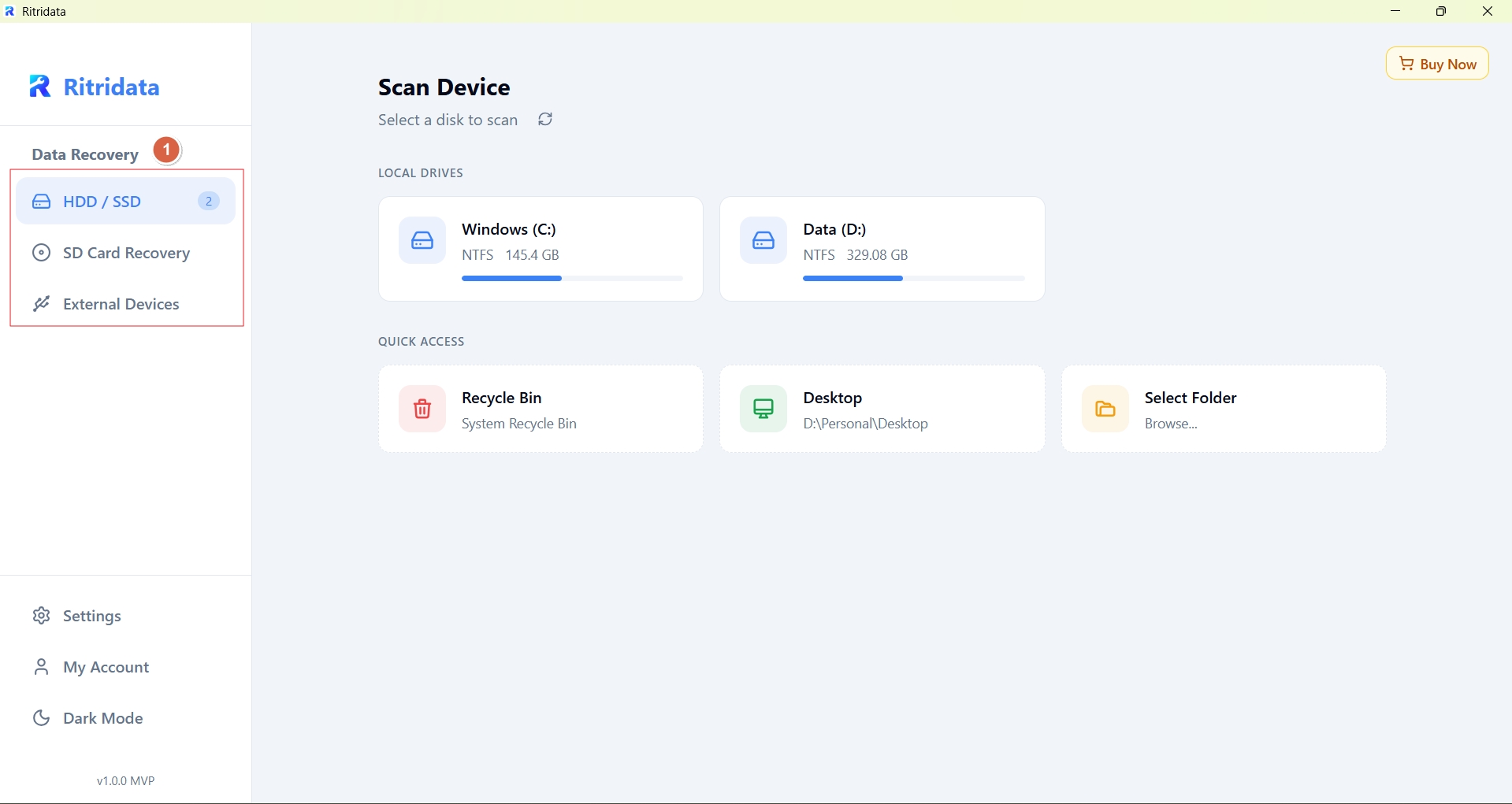
Choose the exact disk where files were lost. Avoid scanning unrelated partitions.
Step 2: Run a Safe Scan
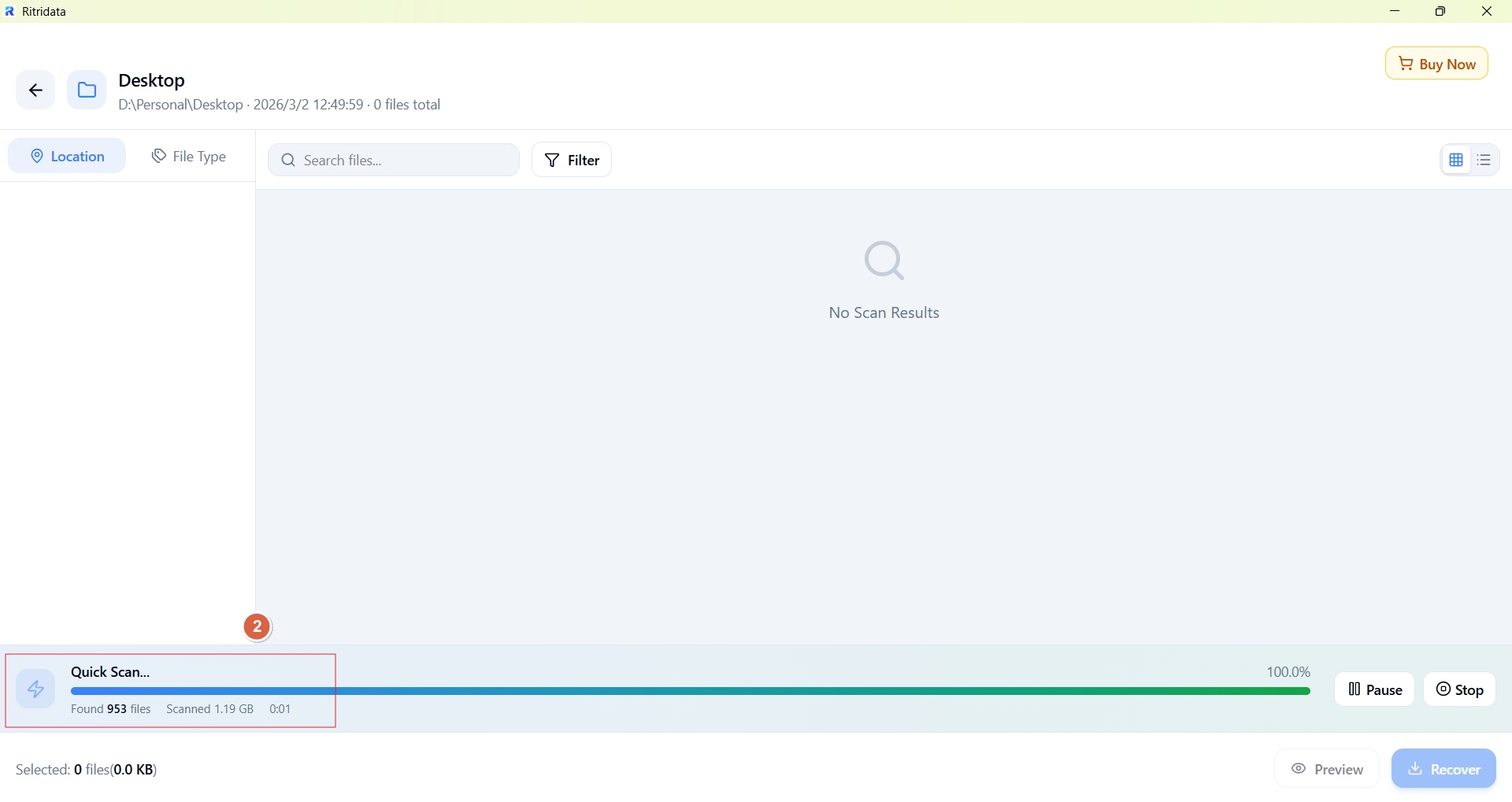
Initiate a read-only scan that analyzes file structures without writing back to the source drive.
Step 3: Preview and Recover
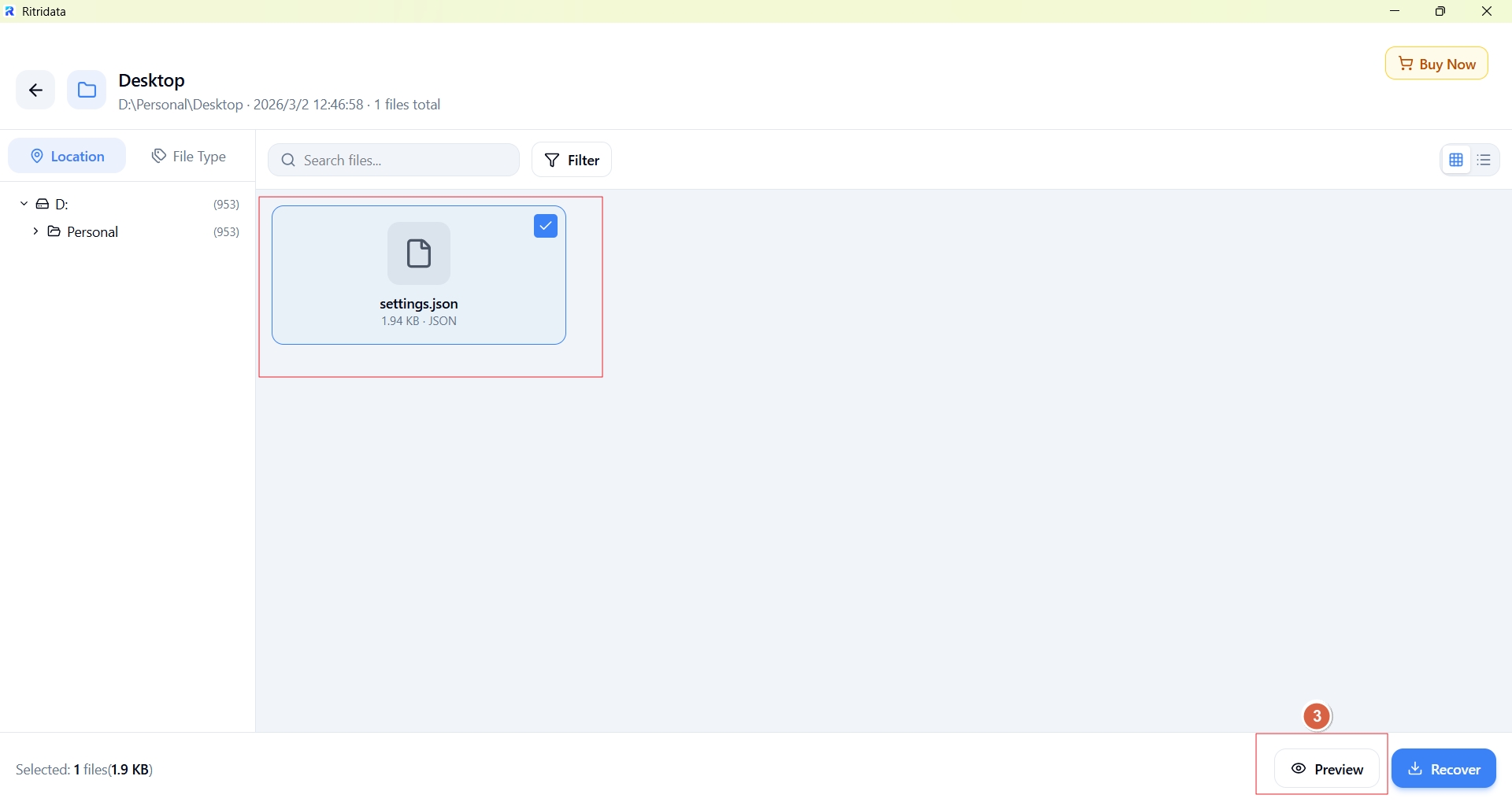
Verify file integrity before restoring. Recover only needed files to a separate disk or external device.
This approach prioritizes preservation rather than aggressive disk modification.
Part 8. When You Should Stop Using Software
DIY recovery should stop if you notice:
- Clicking or grinding noises
- Drive capacity showing 0 bytes
- Repeated disconnections
- Severe SMART warnings
- Physical damage
In these cases, continued software attempts may reduce professional recovery success rates.
FAQ
Which is the best data recovery software? There is no universal best tool. The right choice depends on your data loss type and technical skill level.
Can permanently deleted files be recovered? Sometimes, if the data has not been overwritten and the storage medium still retains the blocks.
Is free data recovery software enough? For small or recent deletions, it may be. Larger or RAW cases often require paid tools.
Does Windows have a built-in recovery tool? Yes, Windows File Recovery, but it uses command-line input and lacks preview.
Can data recovery software fix physically damaged drives? No. Software cannot repair hardware failure.
Is SSD recovery different from HDD recovery? Yes. SSDs use TRIM, which may clear deleted blocks quickly.
Will scanning damage my disk? Read-only scans generally do not modify data, but installing software on the affected drive can cause overwrite.
Can any software guarantee 100% recovery? No. Such guarantees are unrealistic and often misleading.
References
TechRadar – Best data recovery software of 2026 https://www.techradar.com/best/best-data-recovery-software
PCMag – The Best Data Recovery Softwarehttps://www.pcmag.com/picks/the-best-data-recovery-software
EaseUS Official Website – Data Recovery Wizard https://www.easeus.com/datarecoverywizard/free-data-recovery-software.htm
Disk Drill Official Website https://www.cleverfiles.com/data-recovery-software.html
Stellar Data Recovery Official https://www.stellarinfo.com/free-data-recovery.php
Wondershare Recoverit Official https://recoverit.wondershare.com
R-Studio Official Website https://www.r-studio.com
UFS Explorer Official Website https://www.ufsexplorer.com
DMDE Official Website https://dmde.com
Recuva Official Website https://www.ccleaner.com/recuva
Microsoft Support – Windows File Recoveryhttps://support.microsoft.com/windows/windows-file-recovery
CGSecurity – TestDisk & PhotoRec https://www.cgsecurity.org
Ontrack EasyRecovery https://www.ontrack.com/en-us/software/easyrecovery
MiniTool Power Data Recovery https://www.powerdatarecovery.com